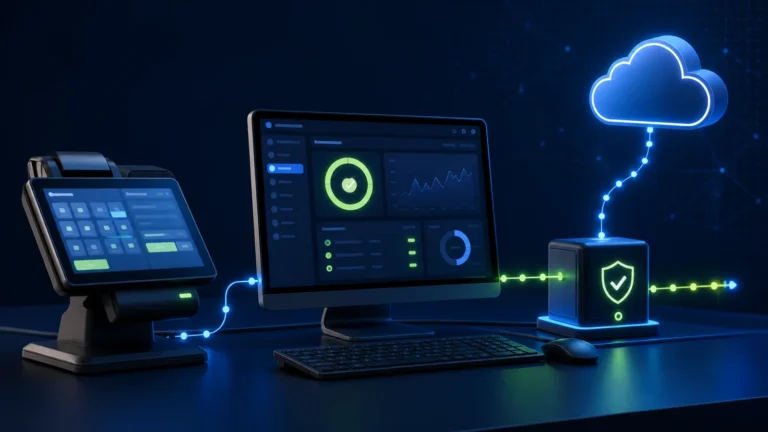
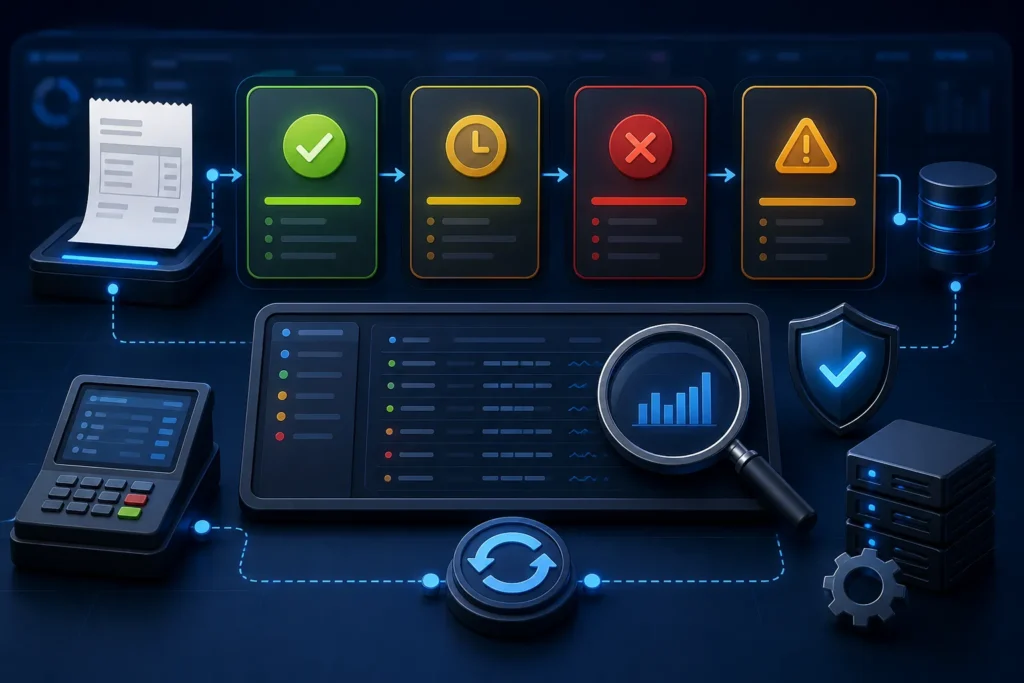
When a PRA-connected POS invoice is failed, pending, missing or uncertain, first preserve the original business invoice number (USIN), payment and receipt evidence. Then identify the layer that failed: POS validation, local fiscal service, network/TLS, authority response, receipt printing or later synchronization. Never delete the invoice or resubmit blindly. A timeout can mean “no response received,” not necessarily “not accepted,” so check logs and official reporting before any controlled retry.
Reviewed 28 August 2026. This article explains software implementation, not legal or tax advice. Businesses should confirm current PRA applicability, registration, service classification, rates and notices for their own circumstances through PRA or a qualified adviser.
Immediate incident rule
- Do not create a replacement invoice solely because the screen is unclear.
- Do not press retry repeatedly.
- Do not edit totals after the transaction has been submitted.
- Capture USIN, branch, counter, timestamp, amount, payment mode and the exact visible status.
- Protect customer and taxpayer credentials when sharing screenshots.
Symptom-to-action diagnostic table
| Symptom | Possible cause | Safe check | Recommended action |
|---|---|---|---|
| Fiscal service does not respond locally | Service stopped, wrong URL/port, installation or permission problem | Use the documented health endpoint; check the Windows service and recent system changes | Restore the approved service/configuration; do not alter invoice data |
| Invoice rejected before submission | Missing required field, invalid type, totals or mapping | Compare payload with the documented invoice model and the POS record | Correct the configuration or allowed source data, preserve the audit trail, then retest |
| HTTP/TLS or connection error | Internet, DNS, firewall, certificate, TLS, IP-whitelist or endpoint issue | Check time, certificate validation, network route and whether other counters are affected | Resolve connectivity/security cause; verify prior acceptance before retry |
| Pending for too long | Queue paused, component upload issue or ambiguous status | Review queue/service logs, USIN and official report visibility | Escalate with evidence; use only a controlled idempotent retry |
| Fiscal number received but receipt did not print | Printer, spooler, paper or template failure | Confirm fiscal response is stored against the invoice | Reprint the same accepted invoice without resubmitting |
| Receipt printed but invoice not found online immediately | Search delay, wrong number entered, synchronization/reporting path or actual failure | Check exact fiscal number, date, environment and relevant IMS report | Wait according to approved support guidance or escalate; do not invent a new invoice |
| Duplicate fiscal references suspected | Repeated submission, weak USIN control or reprint triggering submission | Compare USIN, fiscal numbers, amounts, timestamps and logs | Stop retries and escalate for reconciliation/correction guidance |
| Only one branch fails | Branch-specific POS ID, token, device, service or network configuration | Compare configuration fingerprints without copying secrets | Repair that branch; do not overwrite it with another branch’s identity |
| All branches fail | Shared network, endpoint, authority service, release or certificate issue | Check independent connectivity and recent deployment history | Activate the incident plan and contact official/vendor support with evidence |
Understand the six failure layers
1. Business transaction layer
Was the order actually finalized? Did the customer pay? Is this a sale, return, cancellation or reprint? A technical team cannot diagnose correctly if the operational event is unclear.
2. POS validation layer
Check required invoice fields, item classifications, quantities, discount, payment mode, invoice type and header-versus-line totals. Do not “fix” a rejected invoice by changing an approved tax rate without authorization.
3. Fiscalisation component layer
For a local deployment, verify the documented localhost health endpoint, Windows service, installation folder and component logs. Keep its generated files safe, as the specification instructs.
4. Secure communication layer
Check internet access, DNS, firewall, TLS version, certificate and hostname verification, production URL and any applicable IP-whitelisting arrangement.
5. Authority response and synchronization layer
Separate “request not sent,” “response rejected,” “response lost” and “record not visible yet.” They require different actions.
6. Receipt and reporting layer
A successful fiscal response should be stored before printing. Printer failure is not authority rejection. Reprinting must not call fiscalisation again.
The uncertain-outcome problem
The highest duplicate risk occurs when the POS sends the request but loses the response. The authority or local fiscal component may have processed the invoice even though the cashier sees a timeout. The system should search its logs and stored response using the same USIN before considering a retry.
A robust POS maintains one internal invoice record with immutable submission attempts, timestamps, payload hashes, responses and fiscal reference. It does not create a second sale every time a network call is uncertain.
Evidence to collect before escalation
- Business name/PNTN and POS ID shared only with authorized support
- Branch and counter
- USIN and fiscal invoice number if received
- Date and exact time including timezone
- Invoice amount and payment mode
- Environment: sandbox or production
- Screenshot of status with passwords and tokens redacted
- Relevant log excerpt and correlation/reference
- Whether one or all counters are affected
- Recent software, certificate, network or configuration change
The SFD document’s support note asks for PNTN, POS ID, screenshot and contact number. Send those only through the official current support route shown in the document or portal.
Controlled retry checklist
Retry only when an authorized reviewer has established that the original submission was not accepted or the integration design safely reuses the same business identity without duplication.
- Freeze the affected invoice.
- Search by USIN/fiscal number in local logs and relevant reports.
- Confirm the payment and order record.
- Correct the underlying configuration or network problem.
- Use the same approved source invoice and controlled retry mechanism.
- Record who approved and executed the retry.
- Verify the returned reference and receipt.
- Reconcile the incident at shift close.
What not to do
- Delete fiscal records from the POS database
- Change the system clock to force acceptance
- Disable TLS certificate checks in production
- Copy another branch’s POS ID or token
- Create a fake cash sale to balance the drawer
- Turn a reprint button into a resubmit button
- Assume every “not found” search result proves rejection
- Publish live credentials in a support group
Daily monitoring fields
| Field | Purpose |
|---|---|
| USIN | Stable business identity and duplicate check |
| Fiscal number | Returned fiscal reference |
| Status | Draft, submitted, accepted, failed, pending review or adjusted |
| Attempt count | Detect repeated submission |
| Last error | Diagnose the active cause |
| Branch/counter | Locate configuration problems |
| POS/report totals | Support daily reconciliation |
Frequently asked questions
Should I resend a PRA invoice that is not showing?
Not until you verify whether the original was accepted. Check USIN, local response, logs and the relevant official report/search facility first.
Can I delete a failed invoice?
Preserve it with its status and audit trail. The correct correction or retry path depends on whether it was submitted or accepted.
Why did the fiscal number print but the QR fail?
The receipt template or QR generation/printing may have failed after fiscalisation. Reprint the same accepted record; do not resubmit it.
Where should unresolved authority-side issues go?
Use the official PRA/eIMS support contact shown in the current portal or specification and include a redacted evidence pack.
Need PRA POS incident support?
NexZion Solutions can review logs, preserve invoice identity, isolate the failing layer, establish a controlled retry decision and improve the dashboard and reconciliation process.
Request PRA POS Support PRA eIMS installation & POS integration service
Official sources and review note
The technical specification is an implementation document, not a complete statement of every current legal obligation. NexZion reviewed the official pages above on 28 August 2026 and recommends reconfirming production details before go-live.
Related: connectivity and sync continuity, returns and refunds workflow, invoice reconciliation checklist, and NexZion POS.
Advanced recovery guides
NexZion Solutions publishes practical guides based on business-software, compliance-workflow, website and automation implementation experience in Pakistan.