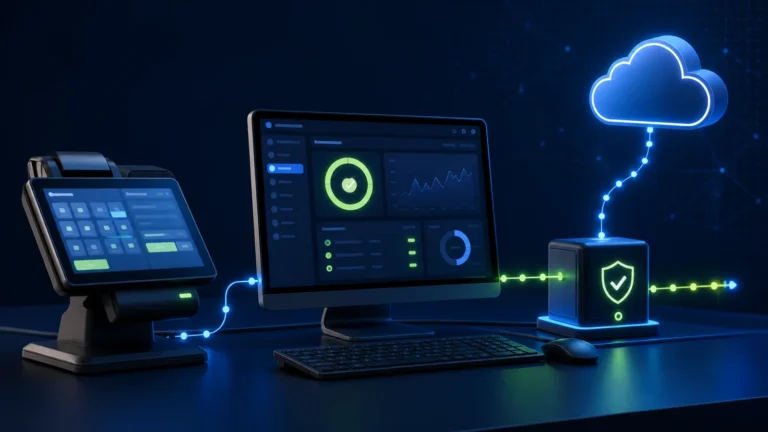
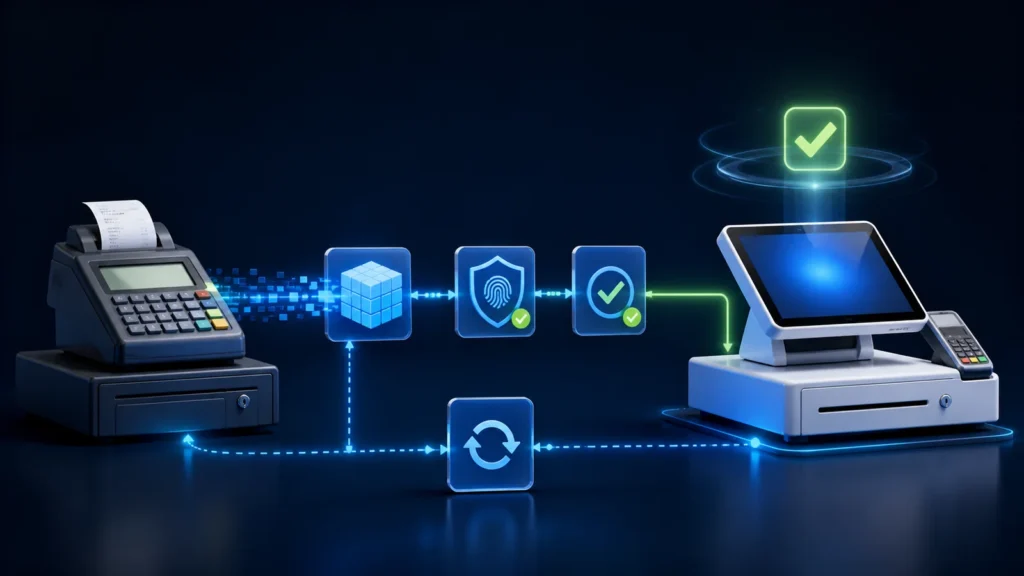
Do not replace a PRA-integrated POS computer like an ordinary office PC. First freeze changes, identify the taxpayer/branch/counter/POSID mapping, reconcile accepted and uncertain invoices, back up supported data, confirm whether registration particulars or whitelisting need attention, install the supported components, test in sandbox, approve a production cutover and preserve the old device until evidence is complete.
Reviewed 28 August 2026. Hardware replacement does not by itself determine the PRA registration or approval steps applicable to a taxpayer. Confirm the current process, installer, credentials, IP controls and any change to registered particulars with PRA before cutover.
Replacement triggers
- hardware failure or recurring disk errors;
- unsupported operating system or security risk;
- counter relocation or branch redesign;
- planned hardware refresh;
- ownership or network change;
- suspected compromise;
- migration from local SFD to another supported architecture.
The urgency changes the schedule, not the need for traceability.
Identity map before touching the old device
| Identity | Record | Why |
|---|---|---|
| Taxpayer/PNTN | Legal taxpayer owning the configuration | Prevents cross-company credentials |
| Branch | Registered and operational branch reference | Links sales to the correct location |
| Counter name | Unique operational counter label | Prevents duplicate or ambiguous counters |
| POSID | Registered POS identity used in payloads | Must map to the correct deployment |
| Device | Serial, asset tag, OS and assigned user | Creates hardware traceability |
| Network | LAN address, outbound public IP and firewall path | Supports local access and whitelisting review |
| Software | POS/SFD version and configuration revision | Supports repeatable recovery |
Pre-cutover reconciliation
Do not migrate while transactions are silently pending. Capture the last completed USIN, last fiscal number, accepted count, uncertain count, queued invoices, returns and cashier closing totals.
- Stop new sales at the planned counter.
- Complete or transfer open operational orders appropriately.
- Review accepted, rejected, queued and uncertain fiscal statuses.
- Resolve or formally escalate uncertain invoices.
- Close and reconcile payments for the old device.
- Export an approved migration report.
Use the safe retry guide for uncertain requests and the invoice reconciliation checklist for finance evidence.
Backup without copying problems
Back up the POS database, configuration, item/service master, user mappings, receipts, fiscal references and supported SFD data. Do not blindly copy an active database or service folder. Use the vendor-supported backup or stop services in an approved sequence, verify the output and encrypt off-device copies.
| Backup item | Validation |
|---|---|
| Database | Restore to a test environment and open sample invoices |
| Configuration | Compare taxpayer, branch, POSID and environment |
| Receipt templates | Print a non-production sample with expected fields |
| Logs/evidence | Search by known USIN and fiscal number |
| Secrets | Migrate through protected secret handling, not ordinary exports |
Build the new device securely
- Install supported Windows updates and endpoint protection.
- Create named administrative and operational accounts.
- Install the POS and supported SFD package from verified sources.
- Apply least-privilege file, service and firewall permissions.
- Load the correct sandbox configuration first.
- Confirm local health checks and receipt printer behavior.
- Protect backups and remove temporary installer copies if policy requires.
See the PRA SFD local deployment guide and PRA eIMS security checklist.
When the network identity changes
If production access uses IP whitelisting, a new ISP, router, VPN, cloud host or outbound route may change the public source IP. Confirm the actual production path before cutover. Do not request broad allow-list entries simply to avoid diagnosing the route.
Sandbox regression pack
- Normal sale with correct POSID and unique USIN.
- Receipt fiscal number and QR formatting.
- Discount and rounding arithmetic.
- Credit/return linked to an original test invoice.
- Network interruption and recovery.
- Service restart and workstation reboot.
- Receipt reprint without resubmission.
- User-role restrictions.
- Closing and reconciliation report.
Production cutover checklist
Change approved → old counter frozen → new device verified → controlled production test → reconcile → monitor
- Record cutover time and responsible people.
- Disable production submission on the old device before enabling the new one.
- Confirm environment and POSID visibly but do not expose secrets.
- Run one controlled transaction under the approved process.
- Verify the fiscal response and receipt.
- Reconcile the first transaction and monitor the queue.
- Keep rollback criteria explicit.
Do not wipe the old device immediately
Retain the old device or a verified forensic-quality backup until migration evidence, open incidents, record retention and management approval are complete. When disposal is authorized, securely erase storage and record the asset disposition. Avoid selling or reassigning a machine that still contains taxpayer data or credentials.
Emergency replacement
For sudden failure, prioritize business continuity without inventing registration steps. Isolate the failed device, preserve storage, identify the last known transaction state, contact the implementation owner, restore to an approved standby or rebuilt machine, test identity and security, then reconcile the outage window.
Official references
- PRA Software Fiscal Device Technical Specification version 1.2
- PRA registration and de-registration rules
- PRA taxpayer verification and change guidance
Frequently asked questions
Can the same POSID be copied to two active devices?
Do not assume that is supported. Use a controlled cutover and confirm the registered architecture and identity mapping for the taxpayer.
Does a printer replacement require a full migration?
Not necessarily, but test the receipt, fiscal number, QR and reprint behavior without resubmitting an accepted invoice.
Should production credentials be included in a backup ZIP?
Avoid ordinary unencrypted exports. Use protected secret migration and restrict access to authorized administrators.
When can the old computer be erased?
Only after migration verification, reconciliation, retention and any incident/legal-hold requirements are satisfied and disposal is approved.
Planning a PRA POS device migration?
NexZion Solutions can prepare the identity map, backup, sandbox regression, production cutover and reconciliation plan.
Continue: Explore the PRA POS Integration Software resource center for registration, SFD, testing, troubleshooting and industry workflows.
NexZion Solutions publishes practical guides based on business-software, compliance-workflow, website and automation implementation experience in Pakistan.